
How to Configure Campaign General Settings
Campaign General Settings define how your campaign behaves and is tracked internally.
Campaign Name
Enter an internal reference for your campaign. This appears in reports and dashboards but is not visible to players.
Start & End Date/Time
Select the start date first, then pick the start time. The system will automatically display the total campaign duration based on your selection.
Optional: Recurring Campaigns
If you wish, you can configure the campaign to repeat automatically over time. For more information on how to create a recurring campaign, click the button below.
Game Selection
Choose which games count toward the campaign. Only bets placed on the selected games contribute to progress or rewards.
For more information on how to add games to a campaign, click the button below
Minimum Bet Amount
Only bets above this value count toward the campaign.
Optional: Exclude Bonus Bets
Enable to ignore bets made using bonus funds.
Opt-in Method
Define how players join the campaign.
No Opt-in – Players are automatically enrolled in the campaign.
Opt-in – Players must manually join via the in-game overlay.
Opt-in via API – Players join by clicking a dedicated link (e.g. from a button, email, or SMS).
For more information about Opt-in Methods, click the button below:
Advanced Settings
These options are optional and only needed if you want more control over campaign visibility or monitoring.
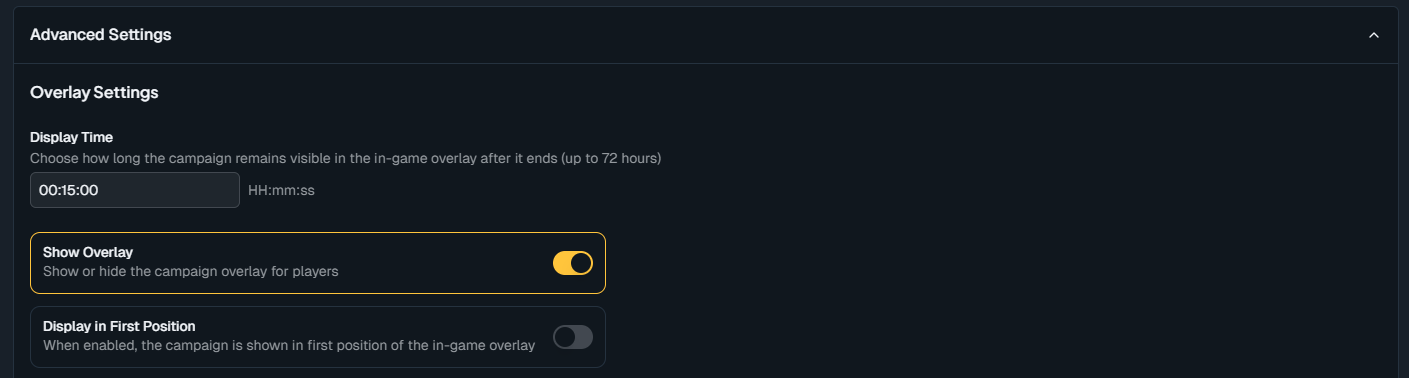
Overlay Settings
Display Time – How long the campaign appears in the in-game overlay after it ends (up to 72 hours).
Show/Hide Overlay – Choose whether the campaign is visible to players.
Display in First Position – Enables the campaign to always appear first in the overlay.
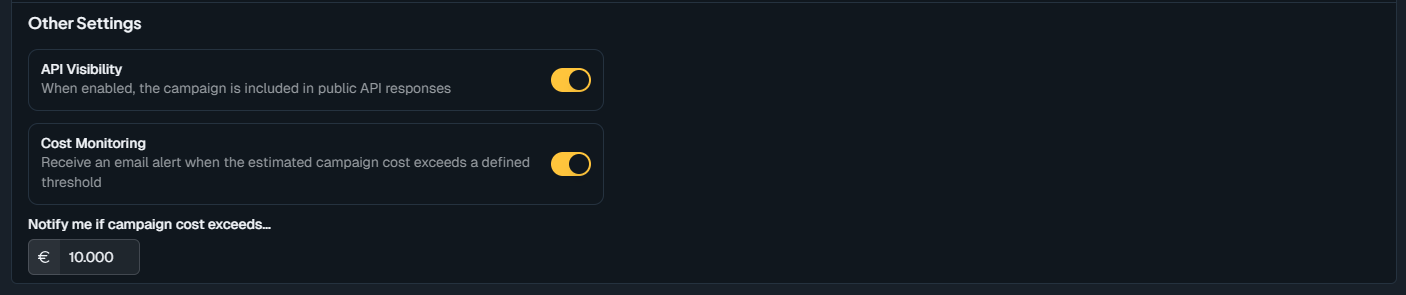
Other Settings
API Visibility – Enable to expose campaign data externally.
Cost Monitoring – Receive email notifications if the estimated campaign cost exceeds a defined threshold.
For more details on API usage, click the button below: